
Track time against each job.
Start, switch and stop job timers from your phone or kiosk.
Give each task a time record.
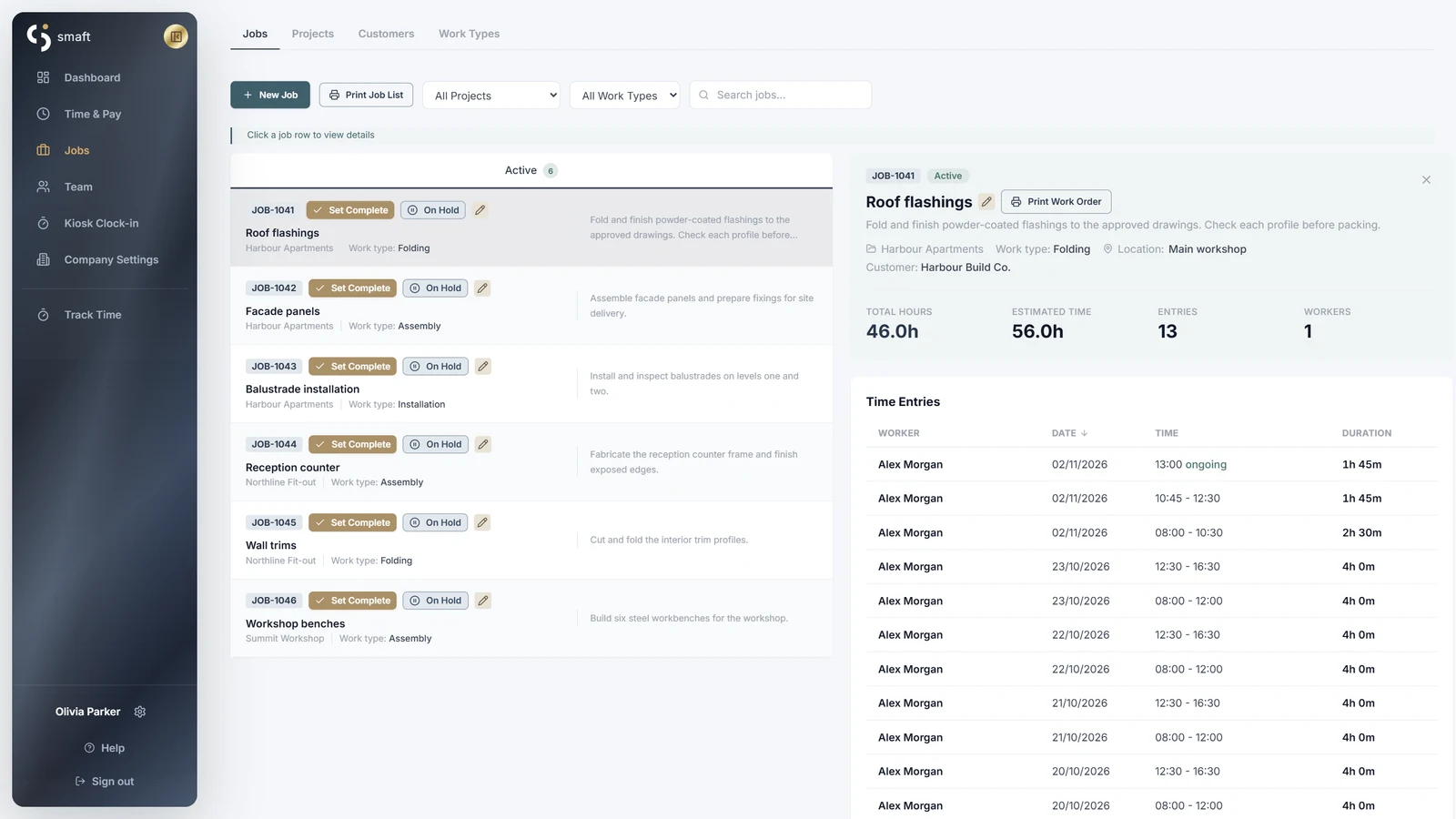
Organise an order or contract as a Project, then create Jobs for the work you want to measure. Each Job has a Work Type. A fabrication project might have cutting, welding and installation Jobs, each with its own recorded employee hours.
Follow a change of work.
Choose the Job
Select the work and start a timer. The entry keeps the employee, Job and Work Type together.
Switch when the work changes
Use the switch action to close the current record and begin the next at the same time.
Review the recorded hours
Stop when finished. The office can inspect individual entries and compare estimated and recorded Job hours.
How time is organised
| Project | Groups related Jobs for an order, customer project or contract. |
|---|---|
| Job | The specific work an employee selects for timing. |
| Work Type | Classifies the activity, including productive, non-productive and unpaid time. |
| Employee timer | One running timer per employee, shared across personal devices and an enabled kiosk. |
Questions about this workflow
Ask about your setupCan one employee record several tasks in a day?
Yes. Set up the tasks as separate Jobs within a Project. Employees switch between those Jobs as their work changes, creating a separate time entry for each period.
Does switching stop the previous timer?
Yes. The switch action ends the previous entry and starts its replacement at the same timestamp. Trying to start another timer without switching is rejected while one is running.
Can several people work on the same Job?
Yes. Each person records their own time. Job details show the individual records and the recorded hours for that work.
Can workers record general work or request a correction?
Workers can record general work and other activities. They can also submit an adjustment request for office review when a record needs correcting.